# Overview
## What is Dirent?
Dirent is a powerful file management tool, designed to enhance your productivity. This documentation serves as your complete guide to the features and functionalities Dirent offers.
### **Toolbar**
The Toolbar is a customizable space where you can place your favorite actions. You have the flexibility to add or remove actions and hide the toolbar if you prefer. All adjustments, including which actions are visible, can be made in the Settings.
### **Tabs**
Tabs in the app represent different locations on your system. You have the freedom to add as many tabs as you like, personalizing each with a specific name and tag for easy identification and navigation.
### **Location Inputs**
For those times when you need to manually type in a path or paste it from another source, the Location Inputs field is your go-to. Just enter or paste the path, and the app will navigate directly to that location, making it a straightforward process.
### **Viewers**
The Viewers display files and folders at your current location. They offer a choice between List and Grid views, allowing you to select the viewing mode that best suits your needs and preferences for browsing through your files.
### **Status Bar**
Located at the bottom, the Status Bar provides useful information about your current location. It also includes handy buttons for adjusting the file and folder viewer, giving you more control over how you view your files.
### **File Preview**
This feature enables you to preview the file or folder that's currently highlighted. For supported files of a smaller size, the preview loads automatically. Preferences for this feature, including which files to auto-preview, can be adjusted in the app's settings.
### **Tasks**
For longer operations like Copying or Moving files, the app allows these to run in the background. You can monitor the progress of these operations through the Tasks popup, which shows the progress of all background tasks in one convenient location.
# File Management
In Dirent, managing your files and folders is a breeze thanks to the array of features we offer. Whether you need to move files, duplicate them, or retrieve their information, Dirent has you covered.
## Copy
#### Overview
The "Copy Items" command clones selected files or folders from the active tab to another tab within Dirent. A progress dialog will appear to show how much has already been copied and whether the operation was successful. If any files encounter issues during the copy process, you'll be prompted to decide whether you want to continue or abort the operation.
#### Simple Copy
To perform a simple copy:
1. Select the files you wish to copy.
2. Invoke the "Copy Items" command.
#### Drag and Drop
You can also drag and drop files between tabs, directories, or even from Finder to Dirent. The process is straightforward:
1. Select the files in one tab.
2. Drag and drop them into another tab, directory, or the tab header.
3. The files will be copied accordingly.
## Copy/Paste from Clipboard
#### Overview
You can copy files to the clipboard and then paste them either in another Dirent tab or into a Finder directory. This is a convenient way to move files around your system.
1. Select the files in one tab.
2. Right-click and select "Copy" to move the files to the clipboard.
3. Right-click in another tab or in a Finder directory and select "Paste."
## Duplicate Files
#### Overview
Duplicating files is made easy in Dirent. A dialog will appear to preview the names of the files that will be duplicated.
1. Select the files you wish to duplicate.
2. Right-click and choose "Duplicate."
3. Review the file names in the dialog that appears.
4. Click "Duplicate" to confirm.
## Delete Files
#### Overview
Dirent offers two kinds of deletion methods:
1. **Remove**: This deletes the files from the file system permanently and is not recoverable.
2. **Move to Trash**: This moves files to the trash, allowing for potential recovery later.
You can configure the default deletion method in the Settings menu. Each time you perform a delete operation, you'll have the option to switch methods in the Delete dialog.
## Rename/Change Path
#### Simple Rename
Renaming files is straightforward:
1. Right-click on the file.
2. Select "Rename."
3. A popup will appear, allowing you to change both the file name and its extension.
#### Change Path
This advanced feature allows you to modify a file's location, name, and extension all at once. If the destination folder doesn't exist, it will be created automatically.
## Create File/Directory
#### Creating a New File
1. Right-click in the directory where you wish to create a new file.
2. Select "Create New File."
3. Specify the name and, optionally, the content of the new file.
#### Create a Directory
1. Right-click in the directory where you wish to create a new folder.
2. Select "Create Directory."
3. Enter the name for the new directory.
# Navigation
There are several efficient methods to navigate between locations within Dirent.
## **Go To Location**
This is likely your quickest option. Simply press the specified shortcut (CMD+P by default), or click on "Go To Location" in the toolbar. A palette with various options will appear. From there, you can select your desired location and press "Enter" to navigate.
The options include:
* **All**: Navigate to any location within the app.
* **Tabs**: Directly jump to any open tab.
* **Favorite**: Access your favorite locations with ease. You can add or remove locations from your favorites by right-clicking on a tab.
* **Recent**: Revisit locations you've previously opened. The number of remembered locations can be adjusted in the Settings.
## Keyboard/Mouse
The specific commands here are based on the "Keymap" you select in Settings. By default:
* **Enter**: Press this to go inside a folder.
* **Backspace**: Use this to return to the parent folder.
These intuitive shortcuts offer a quick and easy way to navigate through folders in Dirent, enhancing your experience with seamless navigation.
## Location Input
For a more direct approach, you can manually type or paste the location into the Location Input field. This method is perfect for when you know the exact path you want to go to and prefer to enter it directly. It's a straightforward way to navigate to any location within Dirent without navigating through multiple folders.
# Search and Filters
Dirent offers several methods to efficiently find the file or folder you're looking for.
## Quick Jump
Simply start typing the name of the file or folder you need. The Viewer will automatically attempt to select the item that matches your input. This quick method is ideal for swiftly locating items when you know their name.
## Viewer Filter
Activate the filter by pressing CMD+F (default shortcut) or by clicking on the Filter icon in the Viewer. Once activated, type the name or extension of the item you're searching for, and the Viewer will display only the items that match your criteria. This filter is a great tool for narrowing down visible items to exactly what you need.
## Search
For a more comprehensive search, use CMD+Shift+F or click on the Search Icon on the Toolbar. This advanced feature conducts a deep search across all files and folders. You can specify detailed search criteria to refine your search. This option is perfect when you need to conduct a thorough search, especially in cases where you are unsure of the exact name or location of the file or folder.
# Themes
Dirent offers Dark and Light themes. Additionally, there is a System theme option that synchronizes Dirent's appearance with the theme settings of your operating system. To switch themes, simply go to the app settings in Dirent.
# Key Bindings
Keybindings are an essential aspect of Dirent that significantly enhance your efficiency and speed while navigating and managing files. This section provides comprehensive information about the keybinding system in Dirent, including the base keymap options and the flexibility to customize keybindings according to your preferences.
#### Base Keymap Options
When you launch Dirent, you have the choice to select a base keymap style that matches your familiarity with other file management applications. You can always change this selection later in app Settings. The available options are:
1. **Default:** This keymap option is designed for users accustomed to code editors and integrated development environments (IDEs). It incorporates keybindings commonly used in programming environments to streamline navigation and manipulation of files.
2. **Finder:** The Finder keymap is ideal for users who are accustomed to macOS's Finder application. It offers keybindings that mirror the keyboard shortcuts commonly used in Finder for file navigation and management.
3. **Commander (Total Commander):** This keymap option is tailored for users who are familiar with the keyboard shortcuts in file managers like Total Commander. It includes keybindings resembling those found in these traditional file management tools.
**Accessing Keybindings Preferences**
To customize keybindings, navigate to the "Settings" menu and look for a tab called "Key Bindings".
**Adjusting Keybindings**
To change a key binding, select the command you wish to modify and double-click or right-click. Then choose "Assign." Next, use your preferred key gesture and click "Assign" to confirm. Keep in mind that some key gestures are reserved by the system and are not allowed. If you select a key gesture that is already assigned to another command, it will be removed from the other command.
**Removing Keybinding**
If you want to remove a key binding from a command, right-click and choose "Remove".
**Resetting Keybinding**
If you want to reset a key binding for a command, right-click and choose "Reset." It will reset the key binding to the default one from the current keymap.
**Resetting to Defaults**
If at any point, you wish to return to the original keybindings, click the "Reset" icon on the top-right of the dialog.
**Available commands**
| Action-Keymap | Finder | Commander | Default |
| ------------------------------------- | ------ | --------- | ------- |
| Activate left panel | ⌘1 | | ⌘1 |
| Activate next tab | ⌥⌘→ | ⌃TAB | ⌥⌘→ |
| Activate previous tab | ⌥⌘← | ⌃⇧TAB | ⌥⌘← |
| Activate right panel | ⌘2 | | ⌘2 |
| Close tab | ⌘W | ⌃W | ⌘W |
| Compress nodes | | ⌥F5 | |
| Copy nodes | ⇧⌘C | F5 | F5 |
| Create new directory | ⇧⌘N | F7 | ⇧⌘N |
| Create new file | ⌥⌘N | ⇧F4 | ⌘N |
| Create new tab | ⌘T | ⌃T | ⌘T |
| Delete nodes | ⌘⌫ | F8 | F8 |
| Duplicate nodes | ⌘D | ⇧F5 | ⇧⌘D |
| Extract nodes | | ⌥F9 | |
| Focus path input | ⌘L | ⌃L | ⌘L |
| Focus volume selector | ⌘K | ⌃K | ⌘K |
| Go to location | ⌘J | ⌃D | ⌘P |
| Highlight first node | ⌥↑ | ⌥↑ | ⌥↑ |
| Highlight last node | ⌥↓ | ⌥↓ | ⌥↓ |
| Highlight next node | ↓ | ↓ | ↓ |
| Highlight previous node | ↑ | ↑ | ↑ |
| Move nodes | ⌥⌘C | F6 | F6 |
| Navigate to parent directory | ⌘↑ | ⌫ | ⌫ |
| Navigate to volume root | | ⌃\ | |
| Next location | ⌘] | ⌥→ | ⌃⇧- |
| Open commands | ⇧⌘E | ⌃⇧E | ⇧⌘P |
| Open node | ⌘↓ | ENTER | ENTER |
| Open node in New Tab in Left Panel | ⇧⌘← | ⌃⇧← | ⇧⌘← |
| Open node in New Tab in Right Panel | ⇧⌘→ | ⌃⇧→ | ⇧⌘→ |
| Open node with... | | | ⇧⌘O |
| Open settings | ⌃, | ⌃, | ⌃, |
| Open with default app | ⌘O | F4 | ⌘O |
| Preview | ⌘Y | F3 | F3 |
| Previous location | ⌘\[ | ⌥← | ⌃- |
| Rename node | ENTER | ⇧F6 | F2 |
| Restore last closed tab | ⇧⌘T | ⌃⇧T | ⇧⌘T |
| Search nodes | ⇧⌘F | ⌥F7 | ⇧⌘F |
| Select current and all next nodes | ⌥⇧↓ | ⌥⇧↓ | ⌥⇧↓ |
| Select current and all previous nodes | ⌥⇧↑ | ⌥⇧↑ | ⌥⇧↑ |
| Select current and next node | ⇧↓ | ⇧↓ | ⇧↓ |
| Select current and previous node | ⇧↑ | ⇧↑ | ⇧↑ |
| Show node info | ⌘I | ⌥ENTER | ⌘I |
| Toggle node selection | SPACE | SPACE | SPACE |
| Toggle quick preview | ⇧⌘P | ⌃Q | ⌘U |
| Toggle table filter | ⌘F | ⌃F | ⌘F |
| Unselect all nodes | ESCAPE | ESCAPE | ESCAPE |
| Zoom in | ⌘= | ⌘= | ⌘= |
| Zoom out | ⌘- | ⌘- | ⌘- |
| Zoom reset | ⌘0 | | ⌘0 |
# Toolbar
Customizing your toolbar in Dirent is a straightforward process. Just head over to the Settings, where you can easily personalize your toolbar to fit your workflow. The process is as simple as dragging and dropping the actions you want to include.
# Permissions
Dirent operates entirely offline, ensuring all your data remains on your computer. For the app to navigate through folders effectively, certain permissions are necessary.
### Folders (MacOS AppStore only)
You have control over which folders Dirent can access. If you try to access a folder outside the specified range, the app will notify you that it cannot read these locations. For the best experience, it's recommended to select the root folder ("/"). This allows for seamless navigation throughout your entire file system.
### Full Disk Access (MacOS)
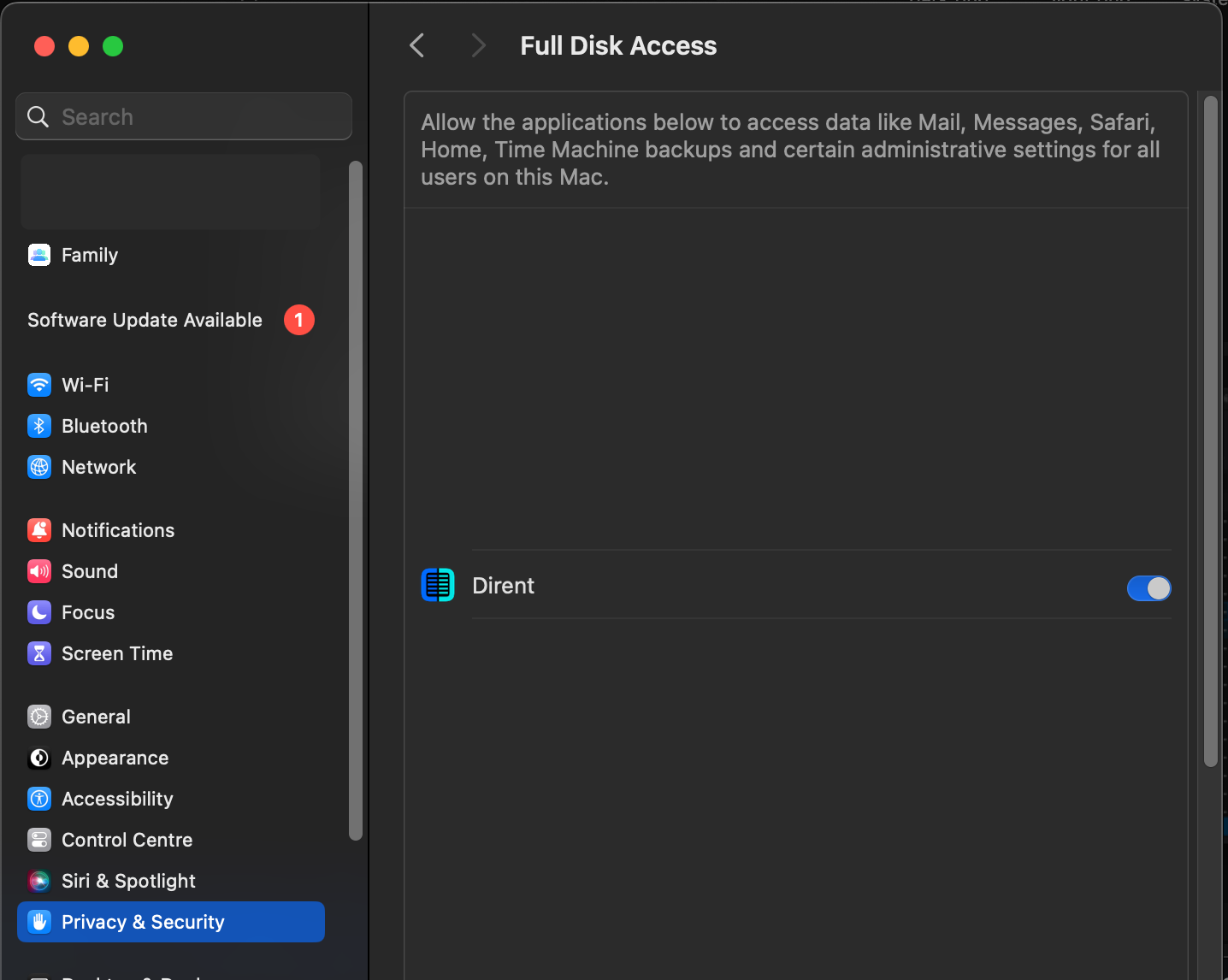
Granting this permission is optional and needed only for accessing certain system folders like Trash, Mail, and Safari, which require special permissions. If you wish for Dirent to operate within these folders, you need to manually enable this permission. Go to MacOS System Settings, then navigate to Privacy & Security -> Full Disk Access, and toggle the setting for Dirent.